Pages

Showing posts with label Educational Software. Show all posts

Tuesday, September 11, 2018

BrainPOP in BVSD: Molly Kirk

Our series of spotlighting teachers who use BrainPOP concludes with Molly Kirk, a 5th grade teacher at Foothill Elementary. To get started, visit the BrainPOP in BVSD webpage, and for more ideas about how to use it in the classroom, check out Part 1 & Part 2 of this blog series!


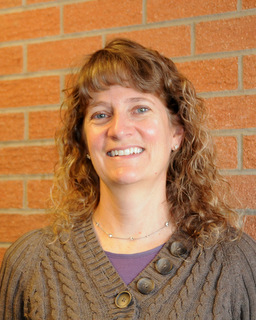
Molly Kirk, 5th Grade Teacher | Foothill Elementary
21st Century Cohort 3.0
Class Website
Molly is currently in her 9th year of teaching 5th grade at Foothill Elementary. She has worked in BVSD as an elementary teacher, a secondary Language Arts teacher and in the GT and Literacy programs. Molly has a Masters in Education from University of Colorado and is endorsed K-12. She is a member of the BVSD 21st Century Cohort 3.0 and thinks the IT department is awesome!


How do you use BrainPOP in your classroom?
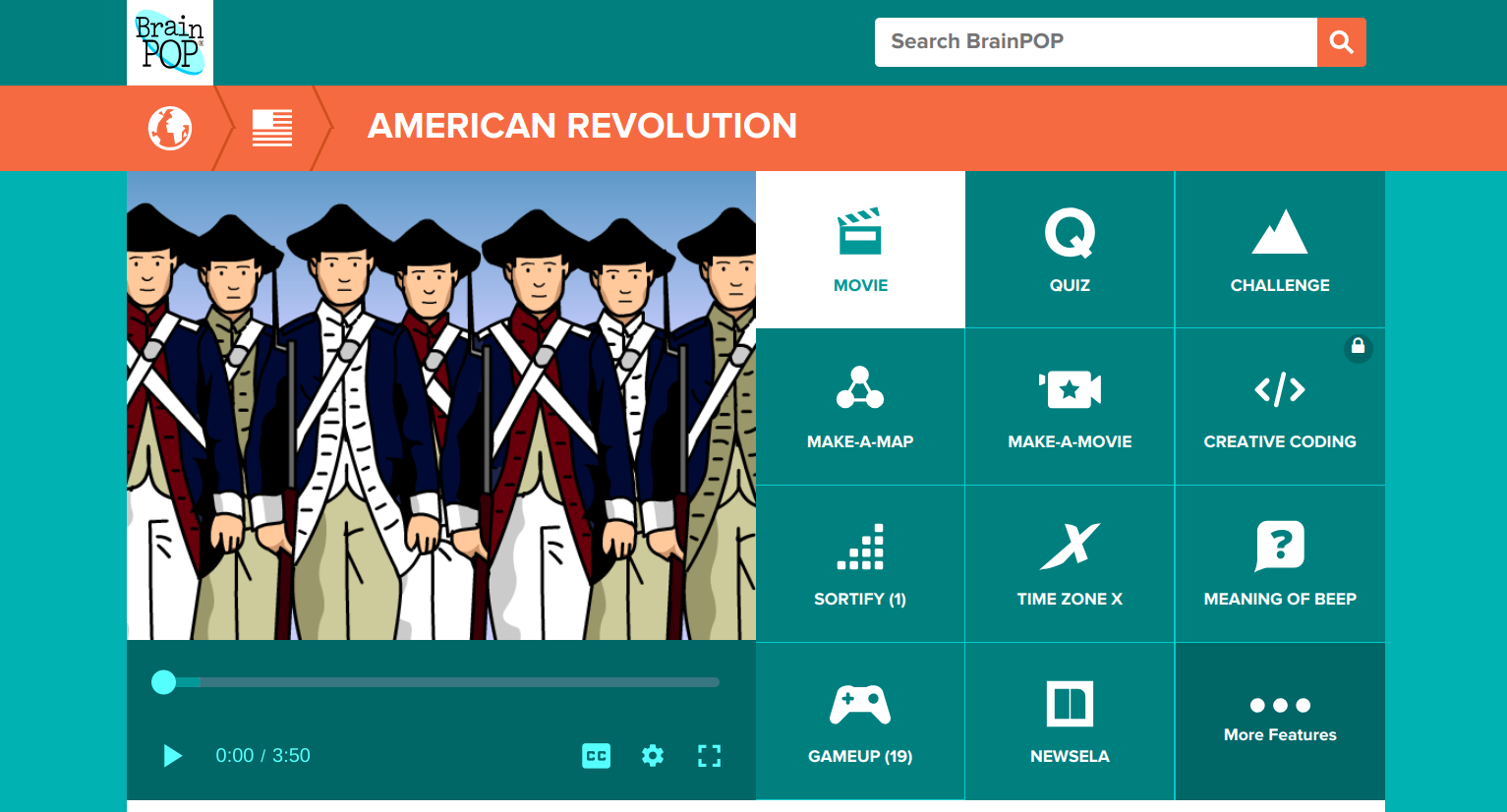

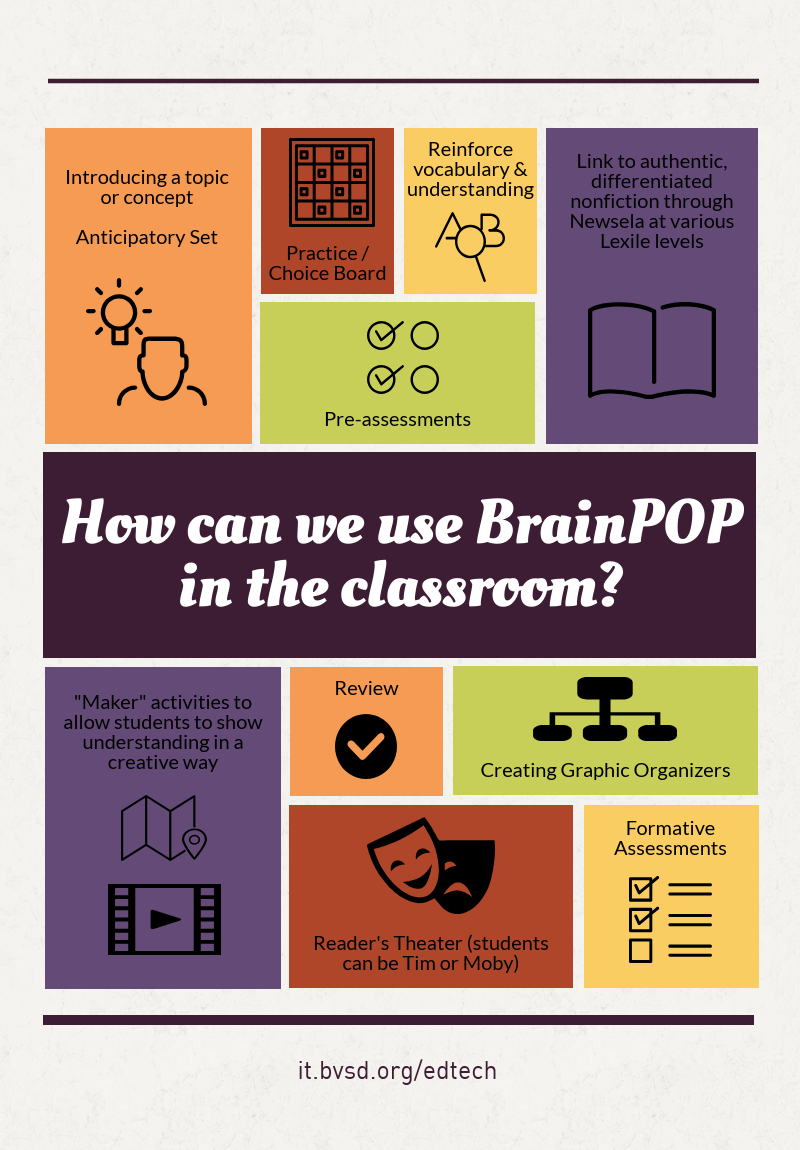
One of the things I love about BrainPOP is the versatility. I am able to find a BrainPOP video for almost any topic I teach. Along with the variety of topics, there are also so many different ways to use BrainPOP beyond the videos with Moby.

Recently, we watched two videos about the American Revolution as an introduction to the important events leading up to the Revolution. The kids did a scavenger hunt of sorts using the American Revolution Timeline in GameUp. They had a list of six events and needed to put them in chronological order using the Timeline as a resource. Then they could choose three battles of the Revolutionary War to read more about. The additional links in the game were informative and we found the students engaged and seeking additional information on topics that they found interesting.

What do you see as the benefits of using BrainPOP?

BrainPOP allows me to apply the 4 Cs easily. My students can be creative as they design their own Make-A-Map which also taps into their critical thinking skills. I love seeing their thinking as they share Snapthoughts with me which also allows them to communicate their thinking. We frequently use BrainPOP with partners or in small groups to allow students to collaborate. I can differentiate by using the FYI and Activities and I love having access to BrainPOP EspaƱol for my Spanish speakers. They can watch the videos in both English and Spanish to reinforce content specific language. One of my favorite things is that from time to time I will log on and see that my students are using BrainPOP at home to learn about topics they are individually interested in.
Editor’s note: For more information on how to use the educator dashboard, go to the BrainPOP Help Center.

If you had one piece of advice to give about BrainPOP, what would it be?


Go beyond the movies and the quizzes. BrainPOP has so much more to offer that allows you to tap into higher-level thinking skills. So much technology just entertains; the full spectrum of BrainPOP allows students to truly engage in the learning process.

Monday, July 16, 2018

BrainPOP in BVSD: Michelle Eckstein

Our series of spotlighting teachers who use BrainPOP continues with Michelle Eckstein, the Elementary Technology Teacher at Peak to Peak Charter School. To get started, visit the BrainPOP in BVSD webpage, and for more ideas about how to use it in the classroom, check out Part 1 of this blog series!


Michelle Eckstein, Elementary Technology Teacher | Peak to Peak Charter
21st Century Cohort 4.0
@mdeckstein | Website

Michelle has been teaching in elementary schools for 10 years, and is currently the Elementary Technology Teacher at Peak to Peak Charter School. Prior to joining the staff at Peak to Peak, she was the TAG Educational Advisor at High Peaks Elementary and Lafayette Elementary Schools. She has a Masters in Gifted Education from the University of Connecticut and endorsements in elementary education, gifted education, and instructional technology. She loves seeing students authentically engaged when they are creating with technology.


How do you use BrainPOP in your classroom?


I use many of the digital citizenship videos and activities in my classroom as well as using the BrainPOP videos to introduce coding to students. Students and I really like the Meaning of Beep. In this game students compete against the computer or a classmate as they improve their academic vocabulary on the topic being studied.

What is one of your favorite things that you have done with BrainPOP?


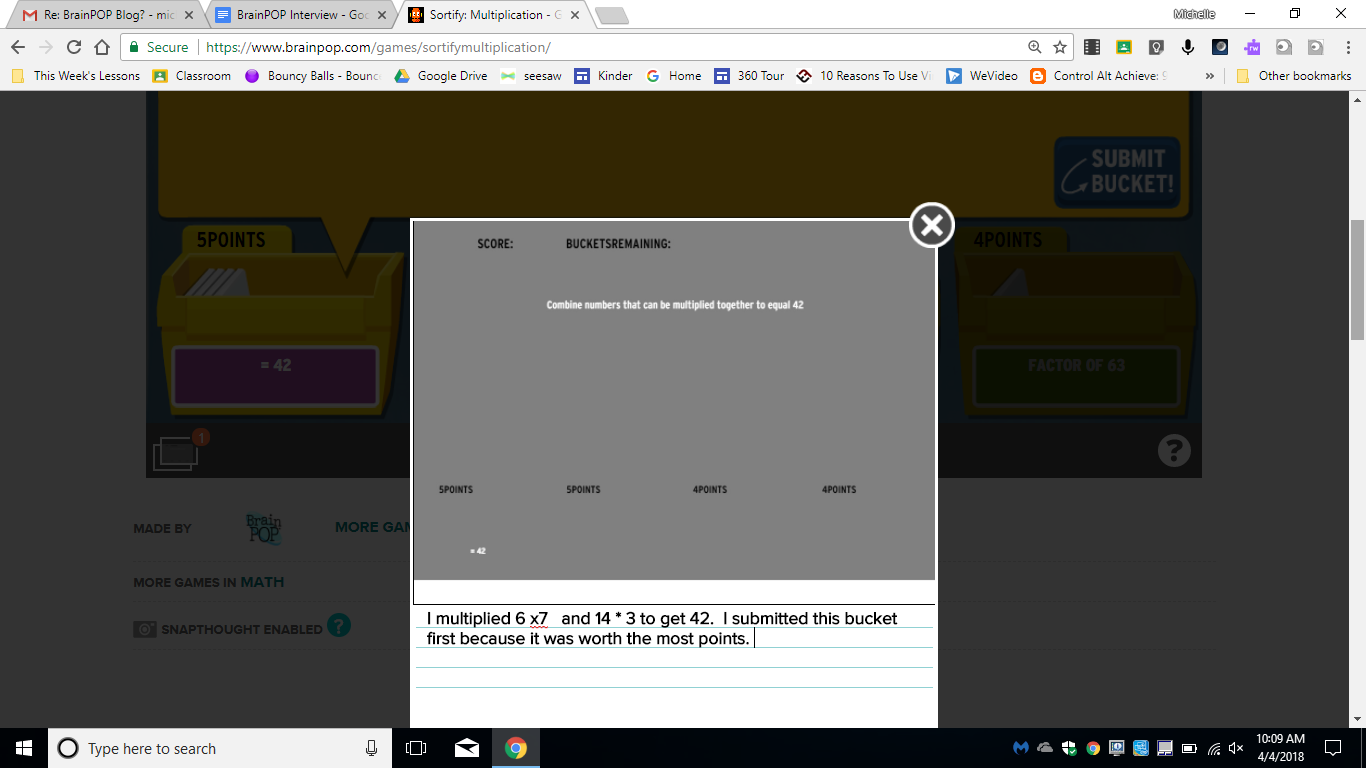
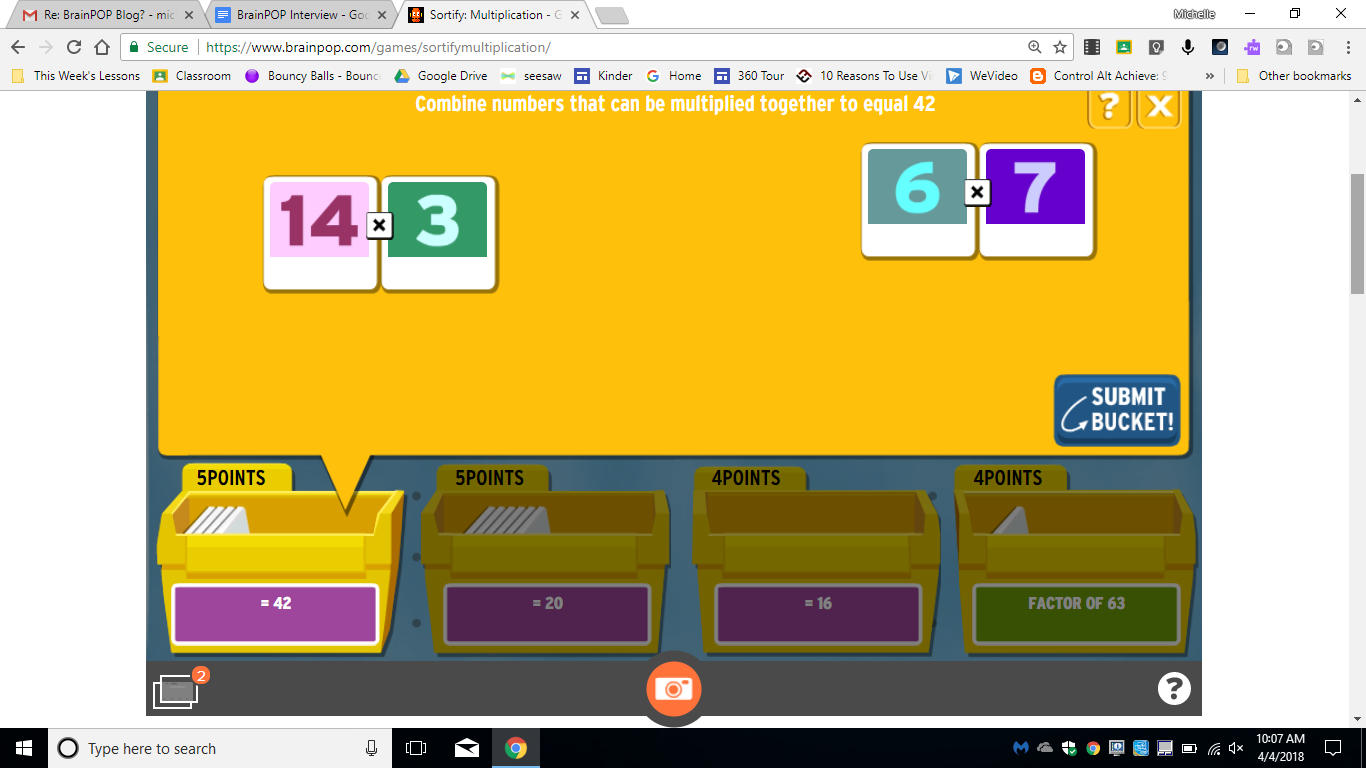
One of my favorite BrainPOP features is the SnapThought tool. Using this tool students can capture their thinking while playing a game. It’s a great tool to use as students play Sortify. SnapThought allows students to grab a screenshot at a moment during game play. They then reflect on their thinking. In the example below, a student is playing Sortify Multiplication and uses the SnapThought tool to take a screenshot during game play. They then explain their thinking and submit their thinking to the teacher. Students love game play, and the SnapThought tool increases the cognitive demand by asking students to explain their thinking.


How is BrainPOP helping your students?


Students enjoy the BrainPOP characters: Tim, Moby, & Annie. The characters and humor in the videos keep students engaged. I find BrainPOP a great way to introduce a topic and build background knowledge, and then I can use many of the activities for students to engage with the content. I love the number of choices for students to show what they know and think critically about the content. I like using Make-a-Map as a collaborative activity for students to think together about most important ideas of a video. The creative tools of Make-a Movie and Creative Coding provide opportunities for collaboration, critical thinking, creativity, and communication. I’m really looking forward to using these new tools more often!


If you have one piece of advice to give to another teacher, what would it be?


My advice to others wanting to get started on Make-a-Movie or Creative Coding is to start with a small group. Give them some time to learn how to use BrainPOP to create and then have them be your “experts”. In the beginning it can be a bit overwhelming for some students to figure out how to create with Creative Coding or Make-a-Movie. Having a few student experts will enable you to focus on helping students with higher level thinking and not get bogged down with teaching the tool. I’m planning to start with my 4th and 5th grade Student Tech Team as experts and they will then train others in their classes to help as well.


Anything else to share?


The BrainPOP Certified Educator program is a great way to get to know some of the less frequently known features of BrainPOP. I’d highly recommend this free training.

Tuesday, June 5, 2018

BrainPOP in BVSD

Did you know that BrainPOP is available in BVSD for all K-8 students? If you are not already using this resource in your classroom, check out the BVSD BrainPOP page to get started!


How can you make the most of this awesome resource?

Some of our BVSD teachers share their best tips & tricks below!


Along with these fun projects, teachers shared how they appreciate the way BrainPOP allows students to access content, no matter what their academic level is. The visual animation is attention-grabbing and effective, and Tim & Moby, the funny and friendly guides, are an instant hit with students! One growing resource is their digital citizenship collection, which can be used with any content area. The activities change with each movie, so they never get boring, and many are available in a printed format if needed. Additionally, because the videos are short, they are easy to incorporate throughout a unit of study.


How have you used BrainPOP in your classroom this year?

Monday, December 18, 2017

Game Based Learning: Make It Fun with Kahoot!

Are you ready to re-energize and reward your students? Try using Kahoot!, a fun formative assessment game that can be used to survey opinions, initiate debates, and gamify your classroom.


Check out how engaged students are as they create, play, and share their learning.


While you can easily make your own Kahoot, sometimes you just need one that has already been created. Have you investigated the many Kahoots already created for education? Since winter break is coming soon, perhaps you can play some of the Kahoots listed below:


Another great part of Kahoot is that it isn’t just about the teacher! We always support students as creators, and using this tool, students can make their own games and quizzes. They could easily use their creation and design skills to put together their own Kahoots as a learning objective for the unit, semester, or year. Wouldn’t it be fun to have a review for a final exam via student-generated Kahoots? Check out this example from a BVSD Spanish 3 class.

Already trying Kahoot in your classroom? We would love to hear from you! Chime in and share some of the Kahoots that you or your students have created by commenting below or tweeting us @BVSDEdTech!

Tuesday, August 25, 2015

Ed Tech Software 2015-16

A new school year is a great time to become acquainted (or reacquainted) with your resources. The Ed Tech team is here to help you integrate technology into your classroom in meaningful, transformative ways. By providing quality software and professional development, we help create an environment where successful, curious, lifelong learners can flourish.


Our goal is to select software titles that can be used across the curriculum and on any device, so that students have anytime/anywhere access to learning. Read about our software journey and selection process.


Below we’ve listed some software for you to explore. For the entire list of Ed Tech software and information about how to access it, please visit our Ed Tech Software page.


Wixie is an online software combining a paint program designed to inspire creativity with standards-based curriculum activities. Students can draw, create, record their own voices, make movies and websites—a great publishing tool! It's available for grades K-5 and can be accessed at wixie.com/sitelogin. Login with your Google account. For more information and tips, check out Wixie in BVSD resources.


Student and teacher accounts are updated by IT every school year. The upload always occurs the week after Labor Day. This year (2015) all students will be assigned to their new grade level and teacher on approximately September 8th. In the meantime, student with current accounts can still access and edit their past projects.


After September 8th new accounts can still be added for teachers and students by completing the WIXIE: Adding a New User Form and submitting an IT service request.


Typing Pal is cloud-based typing software for students in grades 2-8. Students tackle a wide range of personalized exercises, animations, and games as they practice keyboarding skills.


Student accounts are organized by school and graduation year. There is no need to create your own class or move student accounts around, since the Ed Tech team and IT move students to the appropriate groups at the beginning of each school year. Use the BVSD Typing Pal site to find out how to access your school’s unique URL for Typing Pal.


Voicethread is an online presentation tool that allows the user to collaboratively create interactive, multimedia presentations and then share these presentations with others. They can embed video, images, and other types of files, then provide narrative and commentary about these resources. Check out this example!


Voicethread is available to students in grades 6-12 and staff at any grade level. Access this tool from your Google Account by clicking the 3x3 grid in the upper right hand corner, as shown below.
For more information about Voicethread, visit their support site.


NoodleTools is an online annotation, citation, and research tool that allows students to collect source information, collaborate on organizing and planning research projects, and publish their works cited pages. Access Noodle Tools and helpful information!


New users create their own accounts by clicking on the login link to NoodleTools, as shown below.


BrainPop is a group of educational websites that display animated, curriculum-based content.


As of 8/26/15, BrainPOP has signed the BVSD Data Privacy Addendum. Access to the service will be restored as soon as the renewed purchase order can be processed.

Training

Schools seeking training on Ed Tech software have many experts and training opportunities available to them. For example, each school’s Tech Contact and Teacher Librarian have been offered training on many key software pieces—these staff members are excellent resources. In addition to the expert in each building, Ed Tech offers Professional Development Opportunities throughout the year. Check out the BVSD Ed Tech website for more information about Ed Tech software and other resources.

Tuesday, January 13, 2015

Don't Turn It In: Publish It!

 Don’t Turn It In: Publish It!


  • “Is this for a grade?”
  • “Will this be on the test?”
  • “My printer ran out of ink so I can’t turn in my paper.”
  • “Why are we doing this?”
  • “Are you the only one who looks at this or is it for a bigger audience?”


Turning in Work by Publishing!

While the above questions might be familiar, they are often times irrelevant in the modern classroom. Now, our students have an opportunity for learning and assessment beyond the traditional model of turning in work. No longer are students or teachers limited by the process of submitting work to be graded by a teacher with little to no impact beyond the four classroom walls. With access to the world around them, students realize they can publish their work beyond their teacher, impacting a wider audience and, ultimately, increasing their engagement of the learning and project they are completing.

See examples of the possibilities below from students and teachers in BVSD

Did You Know? All of the projects below were graded electronically!

In Language Arts…
  • Students create book trailers as a way to assess their understanding of content, deeper literary elements (character, setting, etc.) and to increase student engagement. (8th grade)
  • Students wrote, illustrated and then made a video to share their beautiful watercolor artwork and imaginative "If.." book inspired by Sarah Perry's book. (1st grade)

In Science…
  • Students create online, collaborative posters with research about the periodic table of elements demonstrating understanding and application of the information (6th grade)
  • Students publish their animal research by creating a website to share with each other and their families. (3rd grade)
  • Students create videos that analyze and explain the parts of a cell. The videos are linked to a Google drawing that connect to that cell. (10th-12th grades)

In Math…
  • Students demonstrate their understanding of math skills (addition with proofs) by creating videos teaching the skill. (2nd grade)
  • Creating original thinking with systems of equations and demonstrating this learning in a presentation (6th-8th graders)  
  • Students analyze and connect math proofs to real-world issues and provide a solution by creating videos and collecting the resources in an online document. (10th-12th grades)

In Social Studies…
  • Students create digital, interactive posters that presents their research on an explorer. (5th grade)
  • Students synthesize their research of The Americas and create an online digital atlas. Then, they share with other students in the class so they can learn from each other. (6th grade)

In World Languages…
  • Students create, perform, record and publish Latin plays to learn, understand and analyze various chapters for learning. These recordings are now being used all over the country for students in other Latin classes. (9-12th grades)
  • Students create a final product for their Spanish class that captured and applied the themes they had learned through the course of the year. This particular student chose to create a website. Along with this website, students created videos and articles to publish as content on the site. (10th-12th grades)

In Music…
  • Students analyze and publish their thoughts regarding their musical selections and performances through a blog and through individual reflections of performances in a Google Form. See this portfolio for even more examples! (6-8th grades)

In Art…
  • Students create original projects/designs for a variety of purposes and student-determined audiences in this digital art course. Two examples: Ad Campaign and Book Cover design (9-12th grades)

In Health/P.E.
  • Students are monitoring heart rates using iPad apps (6th-8th grades)

Interested in learning more? Any BVSD educator to leave a comment as a response to this blog will be put into a drawing to win a copy of  Role Reversal: Achieving Uncommonly Excellent Results In The Student-Centered Classroom  Must leave a comment by February 2nd to be considered for the drawing!

A special thanks to the following educators whose student work is featured in this blog post!

Megan Cosmos*
Gregg Cruger
Kristin Donley
Melissa Duplechin*
Rebecca Feeney
Josh Feiger*
Lynn Gibert*
Rachelle Lieberman*
Lisa Norton*
Ingrid Parker*
Korrie Skibinski*
Janelle Stanton*
Caitlin Thomas*
Mary Waddell*


*21st Century Cohort Member

Wednesday, August 21, 2013

Core Software in BVSD: From Many to Most Impactful


What tools are your students using in the classroom? What types of devices are in your school? Students in Boulder Valley have access to iPads, laptops, Chromebooks, netbooks, PCs, Macs, and more, in addition to their personal devices. This shift in the variety of tools that students use in turn impacts educational software: it needs to be available on any device, anytime, anywhere. This requirement has driven a fundamental change in Core Software in BVSD.


For several decades, the number of Core Software titles grew until they were unsustainable. We began to experience incompatibility issues between older software titles and newer computer technology. At the same time, the nature of how we delivered instruction using technology also changed. The need to purge and reassess became imminent. We realized that we needed to refine our software titles and adoption process, similar to how teachers continually refine their lesson plans.

That need prompted an inquiry process that began in September 2011 by a group of community stakeholders called the Educational Technology Leadership Council (ETLC). This group helped guide the vision of the ideal learning environment in Boulder Valley. Building on that vision, an internal cohort of administrators, teachers, and specialists inventoried our software titles, which topped out at over 80, and planned a course of action to make necessary improvements.

The next steps included district-wide surveys, conversations with stakeholder groups such as teacher-librarians, curriculum directors, tech contacts, as well as all levels of IT. The results of these conversations led to weeding titles that were antiquated, for examples those purchased in 1985. New titles were measured against the ETLC vision for the ideal learning environment and balanced with financial needs and meeting anytime, anywhere access for students.

As a product of this work, Ed Tech has created a Core Software website that showcases a “Supported Core Software List”. For each educational software title, this list shows where it can be accessed, its instructional use, and related information.  Scrolling down the page, there are titles that have reached their “End-of-Life” and are no longer supported by the district. If your favorite title is on this list, you can find an upgraded alternative in the “Replaced by” section.


Schools seeking training on Core Software titles have many experts and training opportunities available to them. For example, each school’s Tech Contact and Teacher Librarian have been offered training on many key software pieces—these staff members are excellent resources. In addition to the expert in each building, Ed Tech is offering several Professional Development Opportunities starting with a Core Software Open House on Wednesday, September 25th. Check out the BVSD Ed Tech website for more resources about Core Software.