Pages

Showing posts with label Cloud Computing. Show all posts

Tuesday, August 25, 2015

Ed Tech Software 2015-16

A new school year is a great time to become acquainted (or reacquainted) with your resources. The Ed Tech team is here to help you integrate technology into your classroom in meaningful, transformative ways. By providing quality software and professional development, we help create an environment where successful, curious, lifelong learners can flourish.


Our goal is to select software titles that can be used across the curriculum and on any device, so that students have anytime/anywhere access to learning. Read about our software journey and selection process.


Below we’ve listed some software for you to explore. For the entire list of Ed Tech software and information about how to access it, please visit our Ed Tech Software page.



Wixie is an online software combining a paint program designed to inspire creativity with standards-based curriculum activities. Students can draw, create, record their own voices, make movies and websites—a great publishing tool! It's available for grades K-5 and can be accessed at wixie.com/sitelogin. Login with your Google account. For more information and tips, check out Wixie in BVSD resources.


Student and teacher accounts are updated by IT every school year. The upload always occurs the week after Labor Day. This year (2015) all students will be assigned to their new grade level and teacher on approximately September 8th. In the meantime, student with current accounts can still access and edit their past projects.


After September 8th new accounts can still be added for teachers and students by completing the WIXIE: Adding a New User Form and submitting an IT service request.


Typing Pal is cloud-based typing software for students in grades 2-8. Students tackle a wide range of personalized exercises, animations, and games as they practice keyboarding skills.


Student accounts are organized by school and graduation year. There is no need to create your own class or move student accounts around, since the Ed Tech team and IT move students to the appropriate groups at the beginning of each school year. Use the BVSD Typing Pal site to find out how to access your school’s unique URL for Typing Pal.


Voicethread is an online presentation tool that allows the user to collaboratively create interactive, multimedia presentations and then share these presentations with others. They can embed video, images, and other types of files, then provide narrative and commentary about these resources. Check out this example!


Voicethread is available to students in grades 6-12 and staff at any grade level. Access this tool from your Google Account by clicking the 3x3 grid in the upper right hand corner, as shown below.
For more information about Voicethread, visit their support site.


NoodleTools is an online annotation, citation, and research tool that allows students to collect source information, collaborate on organizing and planning research projects, and publish their works cited pages. Access Noodle Tools and helpful information!


New users create their own accounts by clicking on the login link to NoodleTools, as shown below.


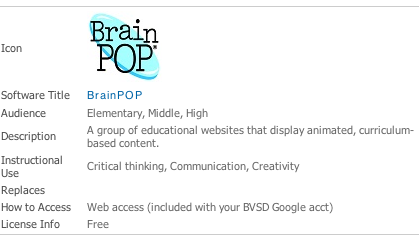
BrainPop is a group of educational websites that display animated, curriculum-based content.


As of 8/26/15, BrainPOP has signed the BVSD Data Privacy Addendum. Access to the service will be restored as soon as the renewed purchase order can be processed.

Training

Schools seeking training on Ed Tech software have many experts and training opportunities available to them. For example, each school’s Tech Contact and Teacher Librarian have been offered training on many key software pieces—these staff members are excellent resources. In addition to the expert in each building, Ed Tech offers Professional Development Opportunities throughout the year. Check out the BVSD Ed Tech website for more information about Ed Tech software and other resources.


Thursday, April 2, 2015

Blogging: A 21st Century Communication Tool


What is a blog, and why should I start one?
Blogs, short for ‘web logs’, have increased in popularity over the last ten years. They combine social media and communication to reach a wide audience via the Internet. A blog looks and acts like a website, yet with some important differences.
  • It is organized in a journal format with dated entries. The content is displayed in sections with the most recent submissions at the top. Readers can scroll down through the blog to read past entries. It is a relatively simple way to post and share information with an audience.
  • The journal-entry style of the blog lends itself to being updated more often, as the blog posts can be regular updates or information in a conversational style, rather than updating all the content on a website.
  • A blog can also be utilized as a Web 3.0 tool where the audience can interact and comment as well.
  • Lastly, a blog can be shared as easily as sending a link, making it an important communication tool to keep your community up to date with information and events in a easy to access, easy to manage fashion. Your audience needs the blog link just once, then can revisit the page as often as they'd like and get the most updated posts.
  • A blog will widen your digital presence and help you reach a vast audience.


How to Blog
There are numerous platforms you can start blogging from. Blogger is an excellent option, as it is connected to your Google account. Using these five steps, you can have your blog up and running in about 30 minutes!


  1. Start using Blogger by signing in with your Google Account. After signing in, you will land on your Dashboard.
  2. Click on ‘New Blog’. It will walk you through the steps to give it a title, address, and apply a template to your blog.
  3. Back at your dashboard, you can add your first blog entry. Click on the pencil icon next to the name of your blog. A page similar to a word processing document will open where you will compose your message. You can change fonts/sizes, add graphics, links, and video. When you are finished, you have a few options:
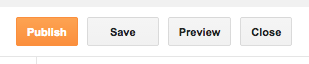
    • ‘Save’ will save your work, but not publish it on your live blog. 'Publish' will both save and publish it.
    • 'Preview' will let you take a look at your published entry.
    • You can revise your entries even after they have been published!
  4. Anytime you want to get back to your Dashboard, click on the Blogger word or icon in the upper left-hand corner of your screen. To see what your blog will look like, click on ‘view blog’.
  5. There are a few key features you will want to play with. From your Dashboard, click on the arrow next to the ‘pieces of paper’ icon, and select ‘overview’.
    • Use the ‘Layout’ feature to add parts to your blog.
    • Use ‘Google+’ to associate your profile with the one you have set up in your Google+ account (optional).
    • Check out ‘Settings’ to manage posts and comments on your blog.
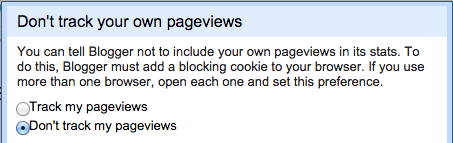
    • In ‘Stats’, set so your statistics will not count your own pageviews in the data.


There are many, many ways to customize your blog. Here are some resources to help guide you.


BVSD Blogs 
  • Superintendent's Blog - Dr. Bruce Messinger, BVSD Superintendent
  • Principally Speaking - John Riggs, Manhattan Middle School Principal
    • Note: John created his blog during the last ‘Principal’s Coffee Chat with Ed Tech’. The next Coffee Chat is for Elementary Principals, scheduled for April 14 from 2:00-3:00pm in the IT Copper Lab. We hope to have a crowd of Elementary leaders there to create their own blogs!
  • Douglass Elementary Blog, via LinkedIn - Jon Wolfer
  • Technology Blog - Andrew Moore, CIO
  • BVSD Ed Tech Blog
Award-winning Blogs from around the country


Wednesday, August 21, 2013

Core Software in BVSD: From Many to Most Impactful


What tools are your students using in the classroom? What types of devices are in your school? Students in Boulder Valley have access to iPads, laptops, Chromebooks, netbooks, PCs, Macs, and more, in addition to their personal devices. This shift in the variety of tools that students use in turn impacts educational software: it needs to be available on any device, anytime, anywhere. This requirement has driven a fundamental change in Core Software in BVSD.


For several decades, the number of Core Software titles grew until they were unsustainable. We began to experience incompatibility issues between older software titles and newer computer technology. At the same time, the nature of how we delivered instruction using technology also changed. The need to purge and reassess became imminent. We realized that we needed to refine our software titles and adoption process, similar to how teachers continually refine their lesson plans.

That need prompted an inquiry process that began in September 2011 by a group of community stakeholders called the Educational Technology Leadership Council (ETLC). This group helped guide the vision of the ideal learning environment in Boulder Valley. Building on that vision, an internal cohort of administrators, teachers, and specialists inventoried our software titles, which topped out at over 80, and planned a course of action to make necessary improvements.

The next steps included district-wide surveys, conversations with stakeholder groups such as teacher-librarians, curriculum directors, tech contacts, as well as all levels of IT. The results of these conversations led to weeding titles that were antiquated, for examples those purchased in 1985. New titles were measured against the ETLC vision for the ideal learning environment and balanced with financial needs and meeting anytime, anywhere access for students.

As a product of this work, Ed Tech has created a Core Software website that showcases a “Supported Core Software List”. For each educational software title, this list shows where it can be accessed, its instructional use, and related information.  Scrolling down the page, there are titles that have reached their “End-of-Life” and are no longer supported by the district. If your favorite title is on this list, you can find an upgraded alternative in the “Replaced by” section.


Schools seeking training on Core Software titles have many experts and training opportunities available to them. For example, each school’s Tech Contact and Teacher Librarian have been offered training on many key software pieces—these staff members are excellent resources. In addition to the expert in each building, Ed Tech is offering several Professional Development Opportunities starting with a Core Software Open House on Wednesday, September 25th. Check out the BVSD Ed Tech website for more resources about Core Software.